Tutorial 2
How to add a place
Pick map position
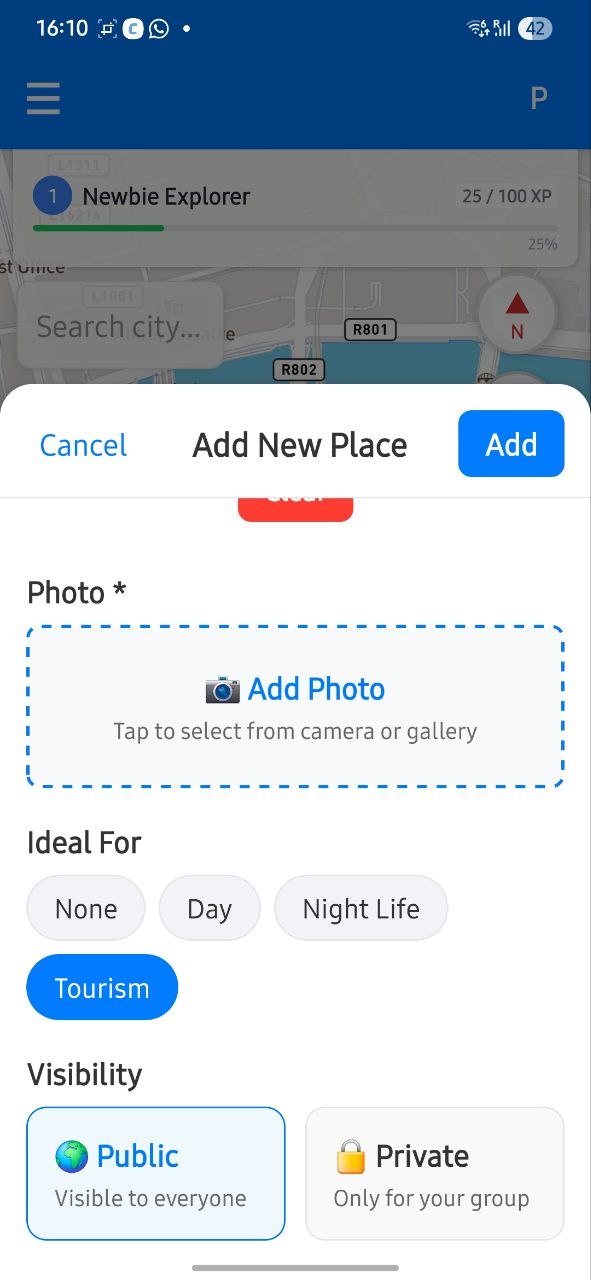
Tap plus, then tap on the map to mark the place and attach a photo immediately.
Choosing the exact position keeps navigation accurate when others follow the route.
Add details
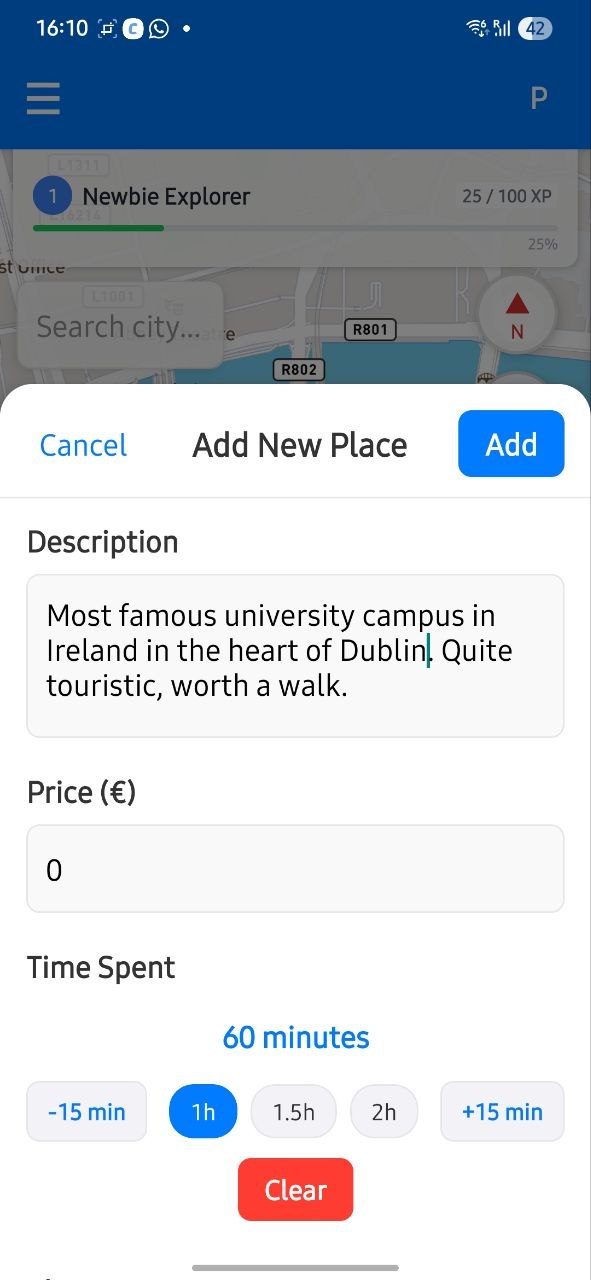
Write description and key info now; you can always edit or improve these details later.
Short, useful notes make the place easier to evaluate for future plans.
Set visibility
Choose public or private. Private places are visible only to people sharing your group link.
Use private mode for draft ideas and public mode for finalized recommendations.