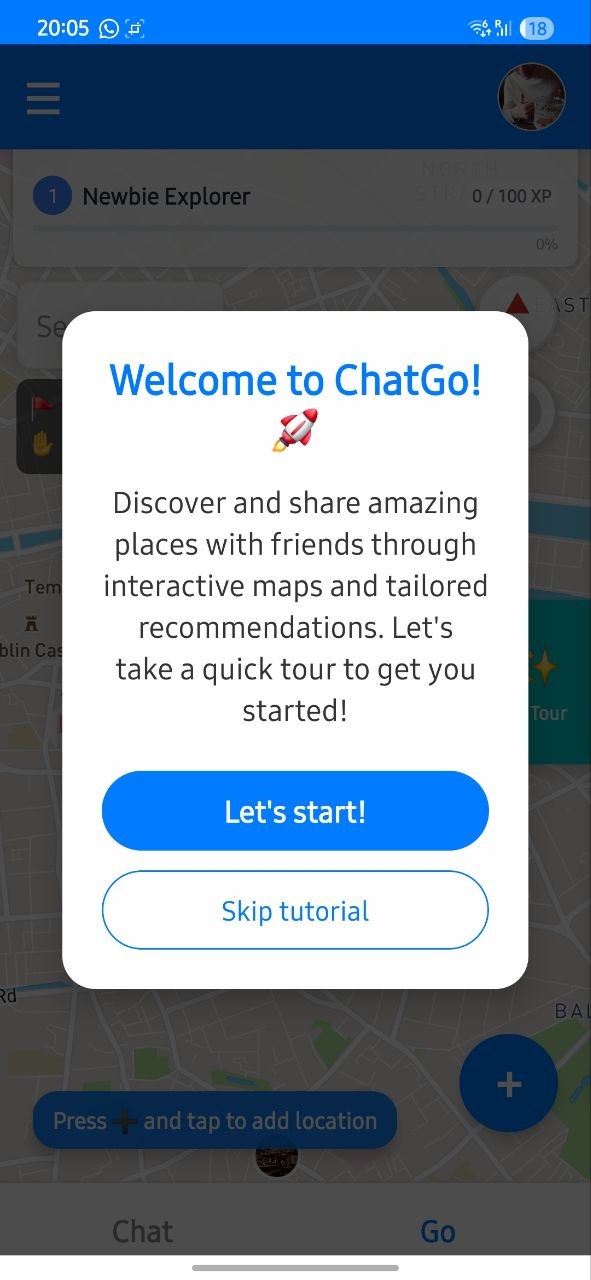
Tutorial 4
Hamburger menu guide
Open hamburger menu
This menu is the control center of the app and gives access to core planning actions.
Use it whenever you need to reconfigure tours, view places, or open tutorial help.
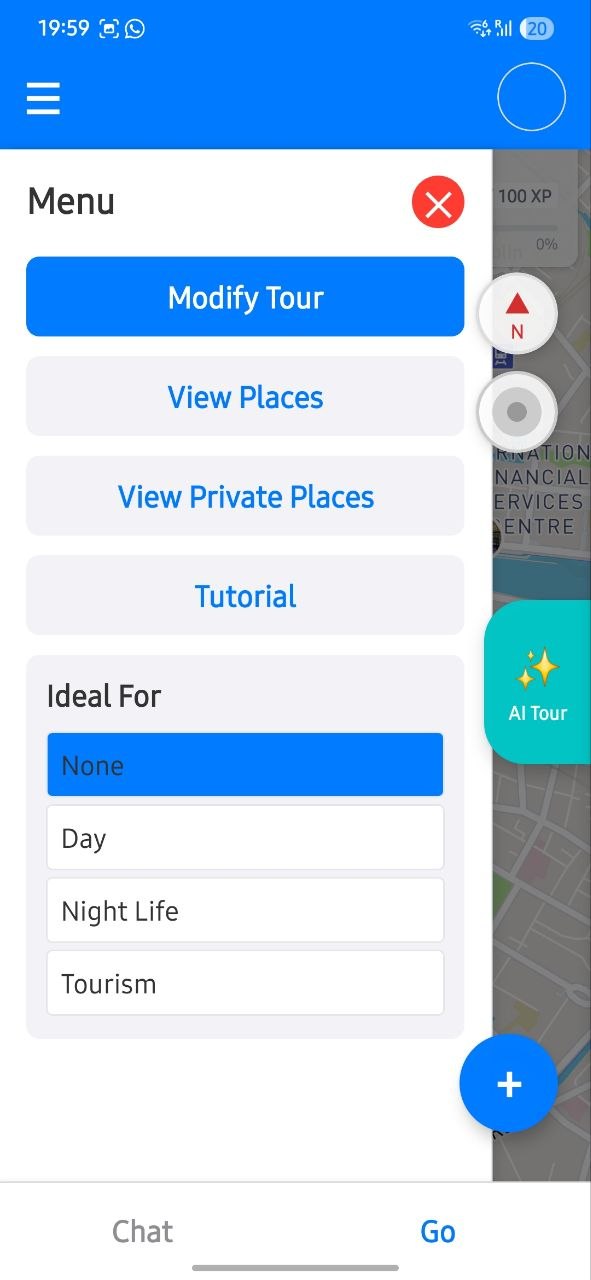
Modify your tour
Select a starting point and it will be used as the start of your tour.
You can add or delete stops, and set a maximum price so the generated tour stays below your threshold.
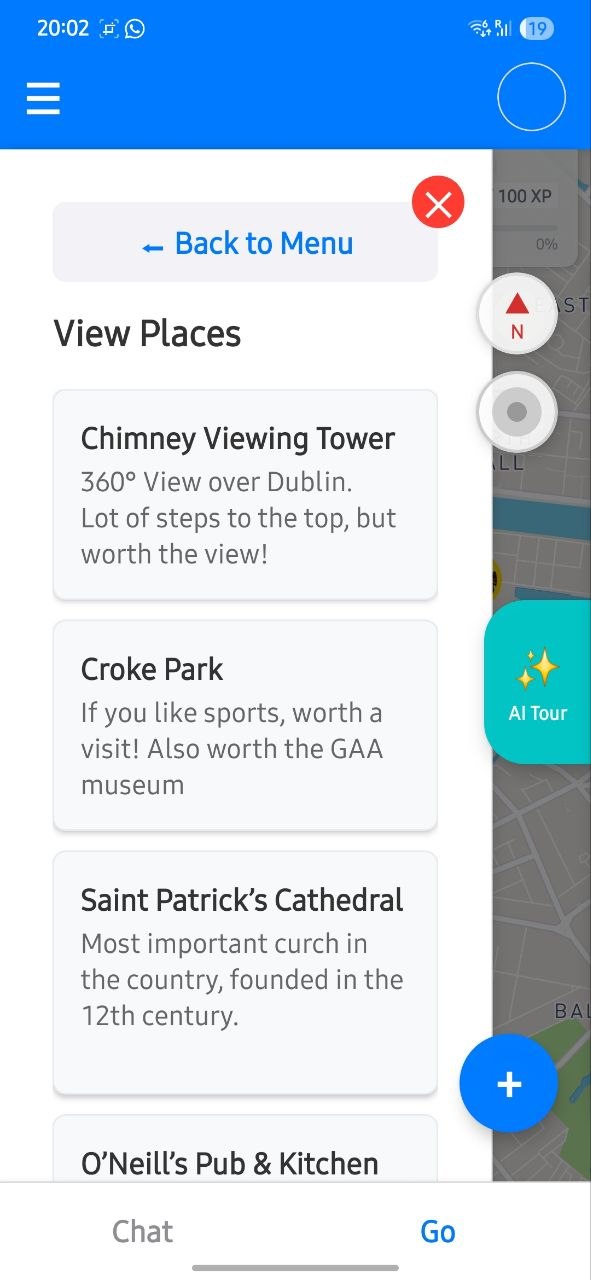
View public places
This section shows the list of all public places. Tap one to navigate to it.
Sometimes places take a few seconds to load, so wait briefly if results do not appear immediately.
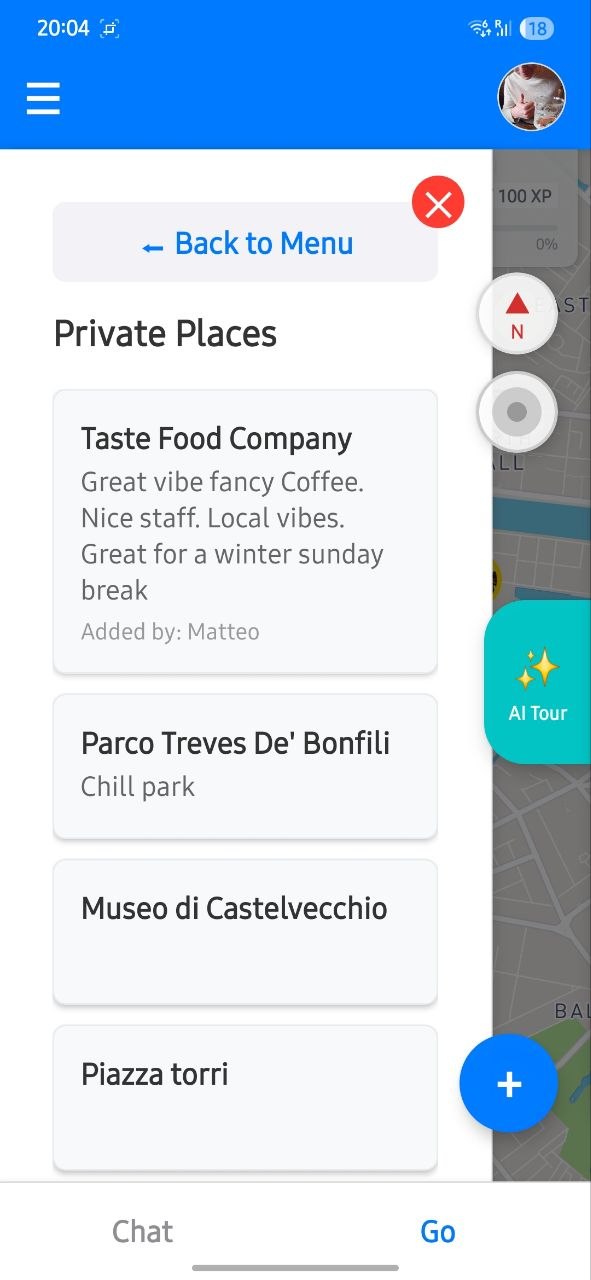
View private places
This shows only places linked to your group link.
If you are not part of a group link, private places will not be visible.
Open the in-app tutorial
This section briefly explains how to use the app.
You can open it anytime if you need a quick refresher while planning.